2025 Homelab Overview
A detailed breakdown of my homelab architecture, virtualization stack, segmentation, and lessons learned over 8 years.
Intro
Like many in IT and cybersecurity, I’ve always been drawn to building, experimenting, breaking and fixing things, and figuring out how it all fits together. Over the last eight years, I’ve built out a full-scale homelab that mirrors a real enterprise environment. It has proper network segmentation, virtualization, and a wide range of tools I use for learning, testing, and tearing things apart.
This post provides a high-level overview of how it’s all set up, something I’ve been meaning to share for a while. Not because I thought it wasn’t worth showing, but because of imposter syndrome and the typical concerns like “what if something’s not secured properly?” or “what if there is a better, more correct way to implement this?” But, as I have matured, I’ve realized that kind of thinking just slows you down. The best way to grow is to put your work out there, take feedback, and keep improving.
Logical Network Architecture
 Above is a logical network diagram I created. VLANs are segmented by function and color-coded by trust level: green for trusted, yellow for semi-trusted, and red for untrusted environments. Blue server icons represent virtual machines, while black and white icons represent physical hardware. Inter-VLAN communication is blocked by default, with specific firewall rules in place to allow only the necessary traffic between zones.
Hardware
After years of testing different hardware combinations, I’ve settled on a setup that strikes a good balance between power, reliability, and flexibility, without going overboard on cost or space. Most compute workloads run on compact, power-efficient Intel NUCs, with a higher-end Dell workstation handling heavier or intermittent tasks. VM storage is split between VMware vSAN across the NUCs and a hardware RAID array on the Dell. A Synology NAS supports backups, file storage, media, and photos. The entire environment is connected and segmented using UniFi gear across the stack.
Networking
- UniFi Dream Machine Pro (UDM-Pro) - Primary router and firewall handling L3 routing, VLAN segmentation, traffic inspection, and threat prevention
- VLANs are segmented using Layer 3 firewall rules defined directly on the UDM-Pro.
- A cellular hotspot provides failover WAN connectivity in case of ISP outages.
- DHCP and DNS services are centrally managed on the UDM-Pro.
- DHCP scopes are assigned per VLAN.
- DNS is used internally with custom host entries for internal services (i.e., SSH access and reverse proxy resolution).
- Security and network services configured:
- Ad Blocking - DNS-based ad blocking enabled for selected VLANs.
- Region Blocking - Bidirectional traffic is geo-blocked for specific countries.
- Honeypot - UniFi Honeypot deployed on the Edge VLAN.
- Identification - Device and traffic-level identification enabled across VLANs.
- Intrusion Prevention - IDS enabled with updated signatures and active protection across multiple networks.
- Edge VLAN ACLs - Access control lists restrict lateral movement by isolating devices within the Edge VLAN.
- UniFi Switch Enterprise (USW-Enterprise, not shown) - Managed Layer 2 switch with 12 × 1 Gbps ports and 12 × 2.5 Gbps ports.
- UniFi Switch Aggregation (USW-Aggregation, not shown) - Managed Layer 2 switch with 8 × 10 Gbps SFP+ ports.
- UniFi U6-Mesh Access Point (not shown) - Wi-Fi 6 mesh access point providing VLAN-aware wireless connectivity across multiple SSIDs.
VLAN Structure
I am using VLANs to segment traffic by function and trust level. Inter-VLAN communication is disabled by default, with granular L3 firewall rules selectively allowing traffic where needed. Each VLAN is assigned a specific role in the environment, supporting isolation, access control, and clarity of purpose.
| VLAN ID | Name | Purpose |
|---|---|---|
| 1 | Home | Personal trusted devices (laptops, phones, tablets, printers) |
| 2 | Work | Corporate-issued devices (work laptop, phone) |
| 3 | Guest | Isolated guest Wi-Fi |
| 4 | IoT | Smart home devices (TVs, plugs, speakers, cameras) |
| 100 | Management | Management interfacesb (PiKVM, UDM-Pro, Synology, vCenter, etc.) |
| 101 | VM | General-purpose VMs and internal services (reverse proxy, GitLab, etc.) |
| 102 | Edge | Public-facing VMs (Cloudflare Tunnel, Web Servers, T-Pot) |
| 103 | SecAD | Isolated Active Directory lab for defensive testing |
| 104 | VPN | Devices routed through ProtonVPN tunnel on UDM-Pro |
| 105 | Kubernetes | Lightweight HA K3s cluster nodes |
| 106 | Isolated | Air-gapped segment for testing without Internet access (currently unused) |
| 108 | VulnAD | Vulnerable replica of SecAD for attack simulation and detection testing |
| 109 | vMotion | vSphere vMotion traffic (ESXi 0-3) |
| 110 | vSAN | VMware vSAN storage traffic (ESXi 1-3 only) |
| 111 | CAPE | Malware sandboxing and analysis using CAPEv2 |
Trust levels (trusted, semi-trusted, untrusted) are indicated in the network diagram above and enforced through VLAN and firewall segmentation.
Compute and Virtualization
Physical Hardware Overview
- 3× Intel NUCs (NUC11TNHi7) - ESXi hosts (ESXi 1, ESXi 2, ESXi 3)
- Intel Core i7-1165G7 CPU
- 64 GB DDR4 RAM
- 1× Crucial P3 2 TB NVMe SSD (used for vSAN)
- Secondary Intel 2.5 Gbps NIC (add-in card)
- 1× Dell Precision 7920 Tower - ESXi host (ESXi 0)
- Dual Intel Xeon Gold 6152 CPUs
- 128 GB DDR4 RAM
- 4× Samsung 870 QVO 4 TB SATA SSDs (RAID 5 via Dell H730P RAID controller)
- 1× 128 GB SATA SSD (ESXi boot disk)
- 1× Nvidia GT 710 (console output)
- 1× Nvidia RTX A4000 GPU (16 GB VRAM, passed through to VMs)
- 1× Intel dual 10 Gbps NIC (X520-DA2)
- 1× Raspberry Pi 4B (4 GB RAM) - Runs Uptime Kuma (Uptime-Kuma)
- 1× Raspberry Pi Zero W (512 MB RAM) - Runs Network UPS Tools (NUT) (NUT)
- 1× PiKVM - Used for remote access to ESXi hosts via TESmart 8-port KVM switch (PiKVM)
- 1× Synology RS822+ - NAS (RackStation)
- AMD Ryzen V1500B CPU
- 32 GB DDR4 RAM
- Synology E10M20-T1 Add-in Card:
- 1× 10 Gbps Ethernet port
- 2× M.2 NVMe SSD slots
- 4× 10 TB Seagate IronWolf HDDs (Synology Hybrid RAID/RAID 5)
- 2× 1 TB Crucial P3 SSDs (used as read/write cache)
- TESmart 8-Port KVM Switch - Connected to PiKVM and all ESXi hosts
- CyberPower CP1500PFCRM2U UPS - backup power and surge protection for all networking and compute hardware
- Connected to my Raspberry Pi running Network UPS Tools (NUT), which coordinates graceful shutdowns for ESXi 0-3 and the Synology NAS if battery levels drop below threshold
Virtual Machines
NOTE - Only select VMs are marked as (testing) if they’re spun up on demand. All others are always-on.
VLAN 100 - Management
- vCenter Server - Centralized management for all ESXi hosts
VLAN 101 - VM Workloads
- Bazarr - Subtitle manager for media (Bazarr)
- Elastic Security - SIEM platform (testing) (Elastic Container Project)
- GitLab - Internal Git and CI/CD (GitLab)
- GitLab Runner - Dedicated runners for GitLab (GitLab Runner)
- Graylog - Log aggregation and search (testing) (Graylog)
- LLM Server - Self-hosted LLM testing (testing)
- PowerCLI - vSphere automation (PowerCLI)
- QRadar CE - IBM SIEM platform (testing) (QRadar CE)
- Reverse Proxy - NPM reverse proxy (NPM) that routes internal subdomains (NPM reverse proxy)
- Security Onion - Threat detection and packet capture (testing) (Security Onion)
- Semaphore - Ansible automation platform (Semaphore UI)
- Splunk Enterprise - Log search and analytics (testing) (Splunk Enterprise)
- TdPlexFin - Custom media stack (Tdarr, Plex, and Jellyfin) with GPU passthrough for transcoding (Tdarr, Plex, Jellyfin)
- Wazuh - Host-based intrusion detection (testing) (Wazuh)
- Additional VMs for general OS testing (Windows 95+, Server builds, Ubuntu, CentOS, etc.)
VLAN 102 - Edge
- Cloudflare Tunnel - External ingress via secure tunnel (Cloudflare Tunnel)
- Guacamole - Web-based remote access gateway (Apache Guacamole)
- Production Web Server (nginx)
- Testing Web Server (nginx)
- T-Pot - Honeypot platform (T-Pot)
VLAN 103 - SecAD
- Windows Server 2025
- Domain Controller
- Management Workstation
- Windows 10 Workstation
- Windows 11 Workstation
VLAN 104 - VPN / Security Tooling
- CAPE Server - Malware sandbox (testing) (CAPEv2)
- CommandoVM - Red team toolkit (testing) (CommandoVM)
- FLARE-VM - Reverse engineering toolkit (testing) (FLARE-VM)
- Greenbone CE - Vulnerability scanner (testing) (Greenbone CE)
- Kali Linux - Offensive security distro (testing) (Kali Linux)
- Kali Linux Purple - Threat detection/testing distro (testing) (Kali Linux)
- Nessus - Vulnerability scanner (testing) (Tenable Nessus)
- Parrot Security - Pentesting distro (testing) (Parrot Security)
- REMnux - Malware analysis toolkit (testing) (REMnux)
- reNgine - Recon and enumeration tool (testing) (reNgine)
VLAN 105 - Kubernetes
- K3s 1 - Lightweight HA node (testing) (K3S)
- K3s 2 - Lightweight HA node (testing) (K3S)
- K3s 3 - Lightweight HA node (testing) (K3S)
VLAN 106 - Isolated
This VLAN is reserved for VMs that require complete network isolation. Currently unused.
VLAN 108 - VulnAD
Same setup as SecAD, but intentionally misconfigured for offensive testing and detection development.
VLAN 109 - vMotion
Used for VMware vMotion traffic between all ESXi hosts (ESXi 0-3) for live migration of virtual machines.
VLAN 110 - vSAN
Dedicated to VMware vSAN traffic across ESXi 1-3.
Storage
The Synology RS822+ NAS (RackStation) serves as the core storage platform for all non-VM data, backups, and media. It supports a mix of NFS and SMB shares, with VLAN-level access restrictions and role-based credentials for separation of access. VM runtime storage is handled separately via vSAN and local RAID, as covered in the Hardware section.
Shared Folder Breakdown
- vmware - Mounted as an NFS datastore across all ESXi hosts. Used to store VM templates, ISO files, vCenter backups, and custom disk images.
- media - Read-only SMB share used by Plex, Jellyfin, and Tdarr for streaming and transcoding. Isolated credentials prevent modification or deletion if a media service is compromised.
- malware - SMB share for malware analysis tools (i.e., REMnux, FLARE-VM, T-Pot). Used to collect and analyze samples in a controlled environment. Access is restricted to specific VMs and VLANs.
- home - Synology Drive storage (similar to OneDrive). Used for syncing personal files across trusted devices.
- photo - Used with Synology Photos, shared with family via Synology’s cloud.
- temp - Scratch space for local scripts, downloads, or ephemeral service data.
- ActiveBackupforBusiness - Target location for weekly VM image backups, managed via Synology Active Backup.
All SMB shares are accessible only from the Home, Management, and VM VLANs. No access is permitted from IoT, Guest, or Edge VLANs. Access is tightly enforced through Synology ACLs and UDM-Pro firewall rules.
Access
Ingress Flow for Web Services
All external web traffic follows a tightly controlled ingress path:
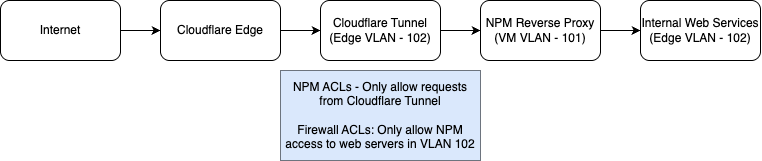
Internet -> Cloudflare Edge -> Cloudflare Tunnel (Edge VLAN) -> NPM Reverse Proxy (VM VLAN) -> Internal Web Services (Edge VLAN)
- The Cloudflare Tunnel client runs in the Edge VLAN and maintains a persistent connection to Cloudflare’s edge network.
- Requests are routed into the NPM reverse proxy (VM VLAN), which handles all internal service proxying.
- Access controls in NPM ensure that only requests originating from the Cloudflare Tunnel are permitted.
- Web servers reside in the Edge VLAN, with strict ACLs allowing access exclusively from the reverse proxy.
- Plex and Jellyfin are also exposed externally via Cloudflare Tunnel on undisclosed domains.
- Access is restricted via IP-based ACLs in Cloudflare Zero Trust, reinforced by NPM proxy rules and UDM-Pro firewall policies.
- No inbound ports are exposed (except for the T-Pot honeypot; see next section); all ingress is routed securely through Cloudflare infrastructure.
Remote Access & Control
- UniFi Teleport - Primary VPN method for secure remote access into internal VLANs
- Apache Guacamole - Browser-based fallback access secured behind Cloudflare Access (email-based identity enforcement). Supports RDP and SSH access to internal systems like PiKVM and a Windows desktop
- UniFi Cloud Connectivity - Secure remote management of UniFi Controller via Ubiquiti’s cloud platform (MFA enabled)
- Synology QuickConnect - Remote access to Synology DSM and related services without port forwarding (MFA enabled)
- T-Pot Honeypot Exposure - Specific ports are intentionally exposed via WAN port forwarding to the T-Pot honeypot in the Edge VLAN for external interaction and monitoring
Except for the T-Pot honeypot, no internal services are exposed via traditional port forwarding.
Lessons Learned
This is an expensive but rewarding hobby. Over the years, I have learned how to design and secure infrastructure the right way through trial, error, and iteration. Some lessons I learned throughout the process are:
- Keep it simple - Complexity is not always better. I once tried to move everything to Kubernetes. While technically possible (and still on my roadmap), I realized that running critical services on VMs or physical hardware was more reliable and maintainable for now.
- Document everything - This post is the result of years of note-taking, diagrams, and configs. Without that, half of it would’ve been forgotten or misconfigured.
- Security requires layers - No single control is enough. Firewalls, ACLs, VPNs, segmentation, etc., each plays a role. If one fails, another should pick up the slack.
- Redundancy matters - Things like UPS-triggered shutdowns, RAID for storage, vSphere clustering for HA, and regular backups all ensure nothing critical relied on a single point of failure (for the most part).
Bottom line: I have learned a lot and enjoyed every bit of the journey.
Roadmap
There’s always more to improve. The following are near and long-term goals for expanding functionality, security, and automation across the lab as well as upskilling:
Security & Hardening
- Integrate CrowdSec on public-facing web servers
- Further harden all Linux and Windows VMs, especially in the Edge and VM VLANs
- Lock down and fine-tune the SecAD environment for defensive testing
Monitoring & Visibility
- Expand Graylog ingestion for critical devices/VMs
- Deploy Wazuh for host-level security monitoring on key systems
- Build Grafana or similar dashboards for system stats and usage visibility
Automation & Management
- Extend Ansible playbooks and better integrate them with Semaphore
- Reach a point where config changes can be pushed lab-wide via playbooks from Semaphore
Application Architecture & Kubernetes
- Deepen understanding of proper Kubernetes/K3s deployment and hardening
- Eventually migrate select services to the K3s cluster for better orchestration
Home Automation
- Stand up Home Assistant and begin integrating smart devices into a centralized platform
Malware Analysis & Offensive Research
- Rebuild and operationalize the CAPEv2 environment for automated malware analysis
- Build offensive infrastructure for research such as C2 frameworks, phishing simulation (i.e., Gophish), and man-in-the-middle (MitM) attack frameworks (Evilginx2), and other PoCs
Documentation & Content
- Start publishing more technical blog posts
- Use this post as a launch point for regular write-ups documenting new setups, lessons, and tooling
Certifications
- Continue upskilling through hands-on certifications such as:
There’s plenty to mess around with, and even more to build, break, secure, and document, all at my own pace, just for the fun of it.
Conclusion
If you made it this far, I appreciate you taking the time. This lab has been years in the making, and while it’s still evolving, this post shows where things stand today. It’s not perfect, but it works, and I’ve learned a ton building it out and have had a lot of fun (and frustration) doing it.
The goal here wasn’t to flex or over-explain. It’s just documentation, shared in case it helps someone else or sparks ideas. Whether you’re someone like me with an interest in building out a homelab, cybersecurity, or just like breaking and fixing things, maybe there’s something in here you can take away or improve on.
If you’ve got feedback, questions, or want to chat about any of this, feel free to reach out on LinkedIn or send me an email).